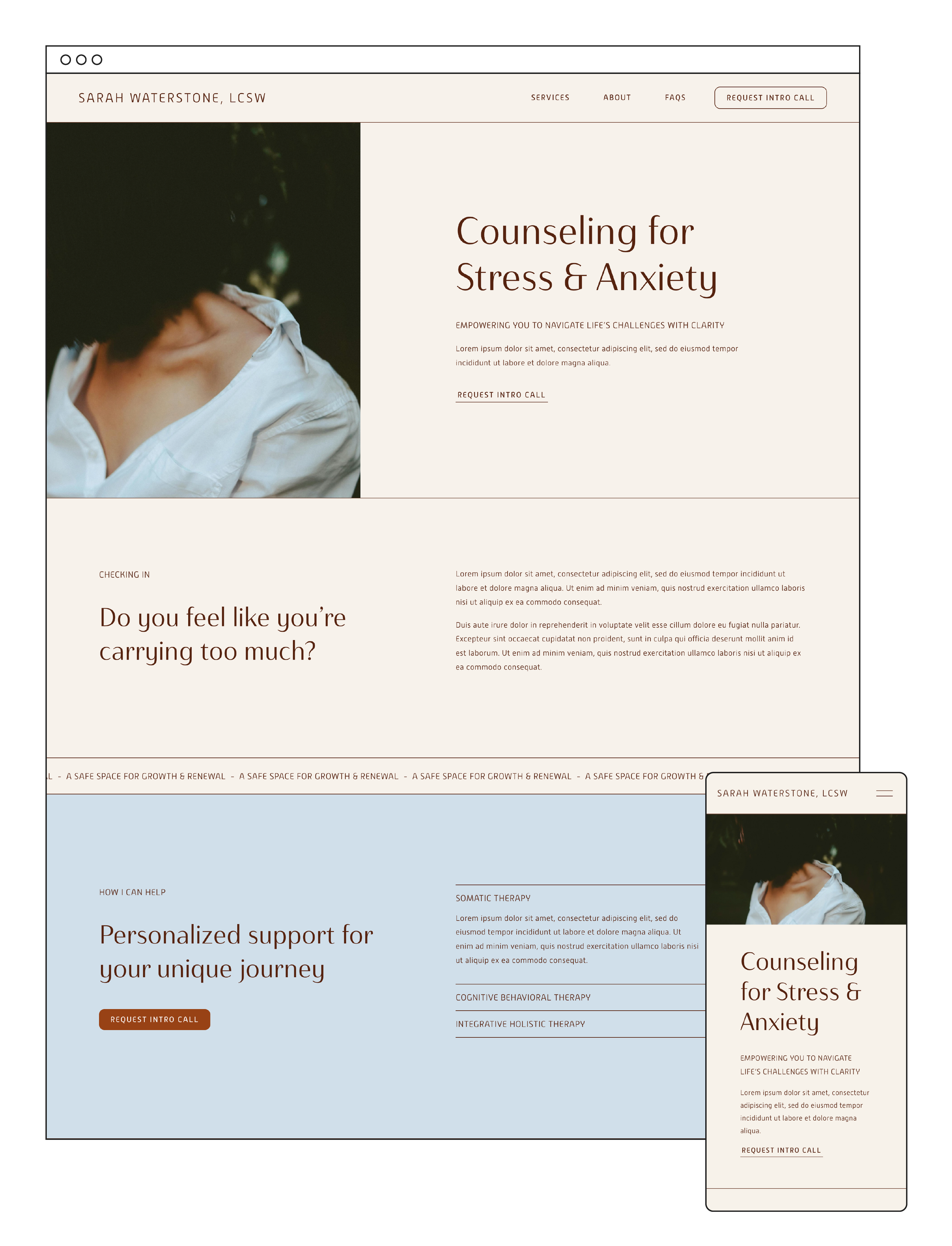
How to Simplify Your Therapy Website Navigation to Get More Clients
The links at the top of your website help people navigate your website, but if they’re not set up with intention, they could be steering potential clients in the wrong direction.
If your header navigation is one long list of every single page on your website, you're likely creating decision fatigue before a potential client even reads a single word about you or your services. Yikes!
The good news is that this is one of the easiest fixes you can make to your website! Plus, it can have a real impact on how many people actually reach out to book with you. In this post and tutorial, I'll walk you through exactly how to clean up your website navigation using the same principles we use on our clients’ websites.

Why too many navigation links can cost you clients
An abundance of links equals an abundance of decisions. And when people face too many decisions at once (especially at the very top of your page, which is the first thing they see), they get overwhelmed and leave.
Your header navigation appears on every single page of your website. No matter where someone lands, that menu is the first thing they interact with. So if it's cluttered and confusing, you're starting every visitor's experience on the wrong foot.
The goal is to make your website as easy and seamless to use as possible, and that starts with offering clear and simple choices right from the start.
How I organize website navigation
Before you start rearranging links, I recommend getting clear on what you actually want your website to do.
Step 1: Identify your website’s goals
Ask yourself: what do I want people to do when they visit my website? Define three goals:
Primary goal: The most important action - the thing you most want visitors to do. For most therapists and coaches, this is usually booking a consultation call or filling out a contact form.
Secondary goal: If visitors are not ready to take action on your primary goal, what’s the next most important action you want them to take? This could be learning about your services and specialties, or listening to your podcast.
Tertiary goal: Again, if visitors still haven’t taken action, what do you want them to do? Maybe it’s joining your newsletter list or reading your blog.
Step 2: Organize your pages according to these goals
Once you know your goals, here's exactly where each type of page goes:
Primary goal → Header button (top right corner).This is the most visible call-to-action on your website. For therapists and coaches, this button might say "Book a Consultation," "Schedule a Call," or "Get Started." Keep it action-oriented.
Secondary goal → Main navigation links.These are the links that help people learn about what you offer. Think: Services, Specialties, About.
Tertiary goal → Main navigation (if there’s room) or footer navigation.If your main nav is getting crowded, these links belong in your footer where they can still be found, just not front and center.
My rules of thumb for a clean header navigation:
Once you know where your pages belong, use these guidelines to keep your menu clean:
Stick to 3–6 main links. This keeps your header navigation clean, tidy, and easy to navigate.
Keep everything on one row. If your navigation wraps to a second line, it's time to condense. Use dropdown menus to group related pages under a single parent link (like "Services" or "Specialties").
Order links left to right by importance. We read left to right, so put your most important pages first. If you want people to look at your services before anything else, that link goes on the far left.
Remove your "Home" link. It's an industry norm that clicking your logo takes visitors to the homepage. If you need to save space, this is the easiest way to reduce link count.
Use one header button, not two. Aside from the fact that having more than one header button is not a native function in Squarespace, two buttons create the exact same problem as too many links: decision fatigue. One clear call-to-action is always more effective.
How to use dropdown menus to declutter (without losing pages)
If you have a lot of service pages or specialty pages, dropdown menus are your best friend. Instead of listing every service as its own top-level link, you create one parent link ("Services") with a dropdown that reveals the individual pages underneath.
In Squarespace, this is easy to set up:
Go to your Pages panel
Next to “Main Navigation", click the + button
Scroll to the bottom of the page type list, and select "Dropdown”
Give it a name (this text will display in your header navigation)
Drag your related pages underneath it. Instantly, your navigation is cleaner and more organized - without losing a single page.
For example, if you offer individual therapy, couples counseling, and executive coaching, those three pages can all live under a single "Services" dropdown. Visitors who want to find your services will now be able to see all of your services at a glance when they hover over the word “Services” in your navigation.
Pro Tip: Use anchor links to jump to sections of a page
If you want to streamline things even further, anchor links might be helpful.
Instead of creating a whole new page for something like your qualifications or credentials, you can link directly to that section of your About page from the navigation menu. This is great for keeping your page count manageable while still making key information easy to find.
Here's how to do it in Squarespace:
Go to the section of the page you want to link to (e.g., your Qualifications section on your About page).
In this section, click "Edit Section"
In the Design panel of the section menu, scroll down to "Anchor Link," and type a name for the anchor (e.g., "qualifications").
Click the "Copy Link" icon and save.
Back in your Pages panel, under Main Navigation, click “Add Page” under your About dropdown.
From the page library, scroll down and select “Link”.
Paste the anchor link URL that you copied in step 4, and title it "Qualifications" (or whatever relates to your link).
Click “Save”.
Now, when someone clicks that link in your nav, they'll jump directly to that section of the page. Seamless and professional!
Quick Recap: Navigation Checklist
Before you close out your website editor, run through this checklist:
✅ Your primary goal is in your header button (typically book a call or contact CTA)
✅ Your main navigation has 3–6 links and fits on one row in desktop view
✅ Related pages are grouped into dropdowns
✅ Links are ordered left to right by importance
✅ Tertiary goal pages have been moved to your footer
✅ You have one header button, not two
Watch the full video tutorial below to see all of these steps in action, and leave a comment below if you have questions about your own website navigation!
Ready to build a website that works as hard as you do?
Your website should be your hardest-working team member - one that attracts ideal clients, builds trust, and makes it easy for people to reach out. A clean, intentional navigation is just the beginning.
If you're building or rebuilding your therapy or coaching website and don't want to start from scratch, check out our done-for-you Squarespace templates designed specifically for therapists and coaches. They come pre-designed and ready to launch - just add your content and photos, and you're good to go!