Using Headings Effectively in Squarespace
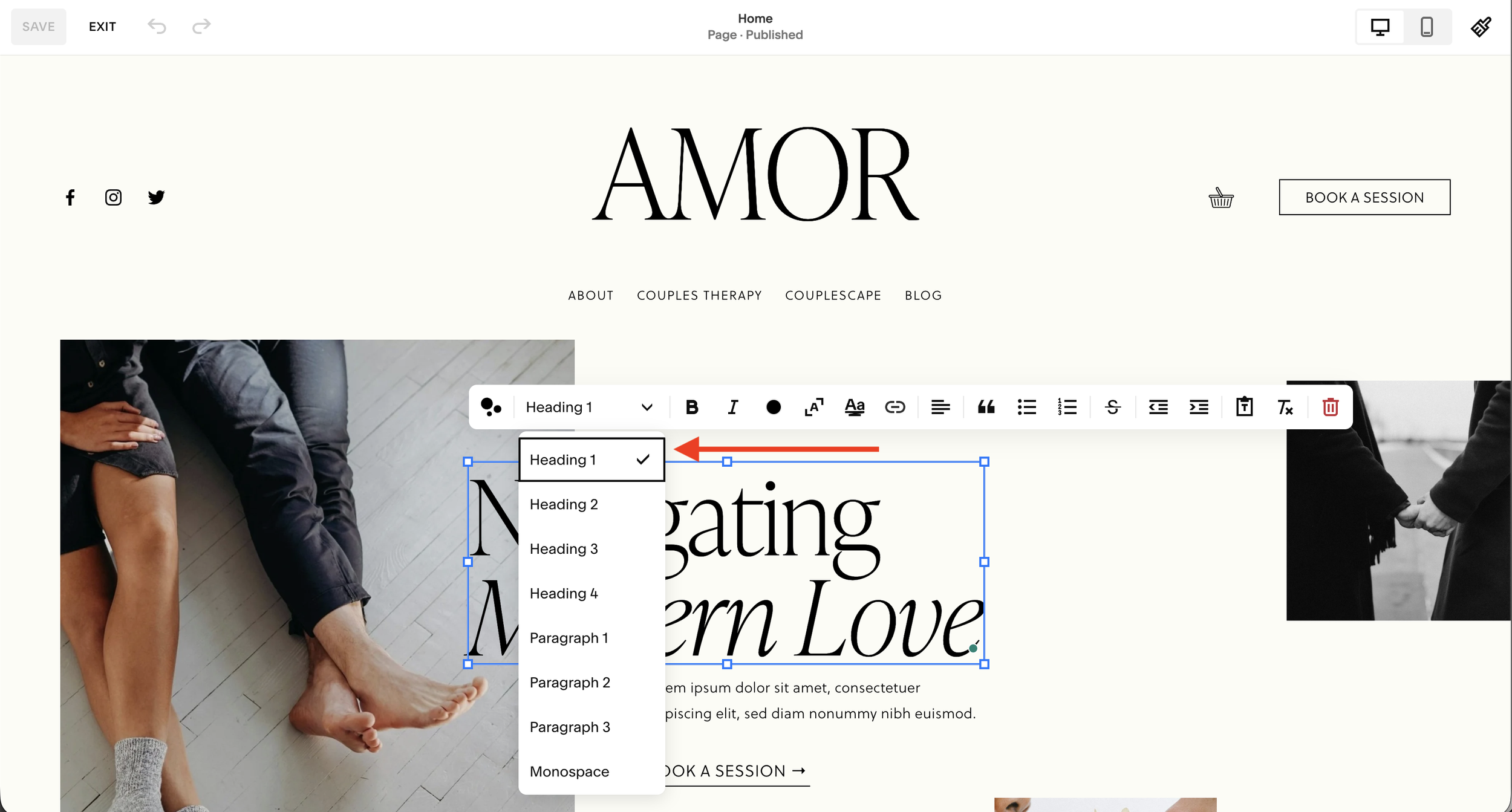
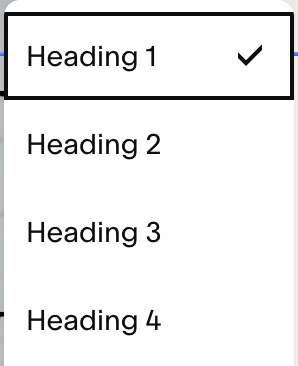
Did you know that the font selector in your Text Block menu does more than change heading size? This simple dropdown is actually crucial to your website’s user experience, SEO (Search Engine Optimization), and accessibility.
Read on to learn why these heading numbers matter and how to use them effectively!
Headings get tagged in your site’s code
While Squarespace’s on-page editor makes designing a website intuitive and easy, a lot is happening on the backend that we can’t see.
Anything that you add to your site gets written into your site’s code automatically, so for instance, when you add some text and select Heading 1, your site codes it as such.
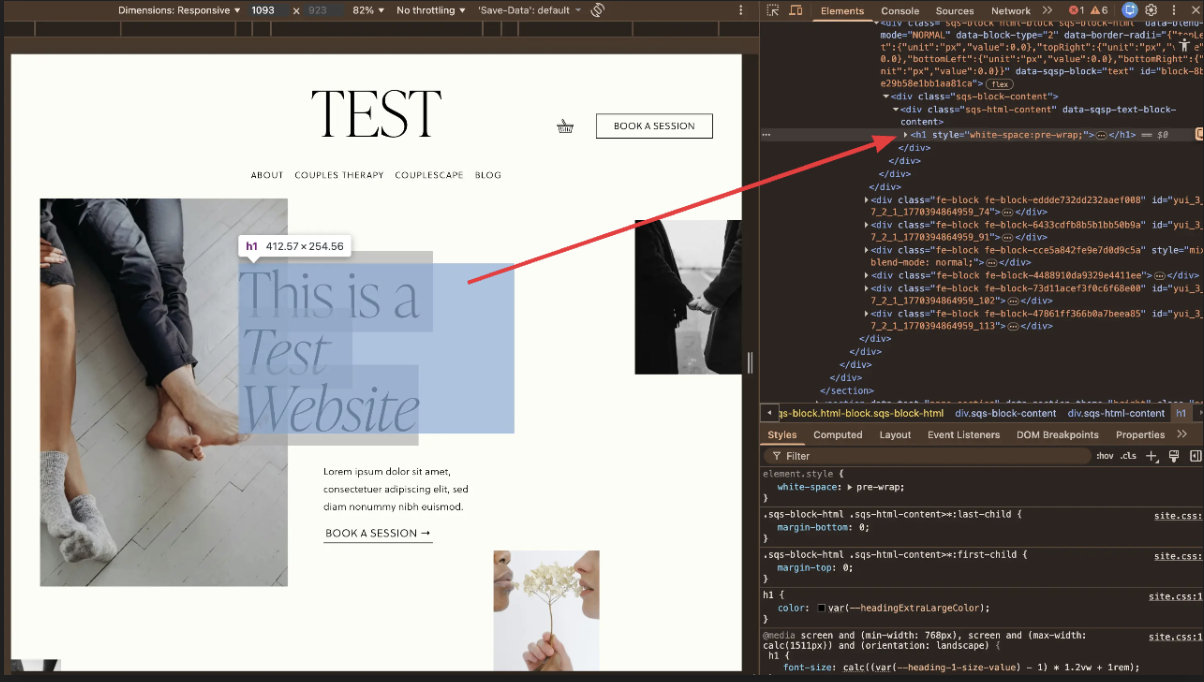
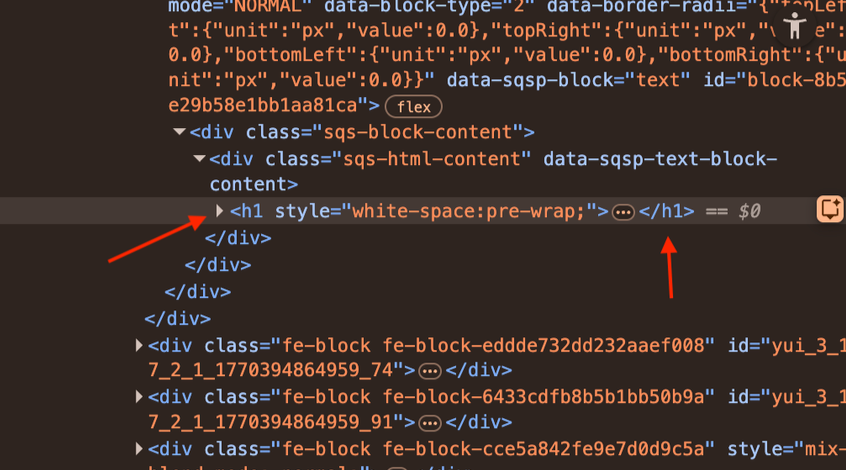
As you can see here, “This is a test website” was designated as Heading 1, so it’s tagged as H1 in the site’s HTML. Here’s a closer look at that:
Why does this matter? Because…
Search engines scan your site’s code to understand your content
Without getting too into the technical weeds, when search engines scan your website, they’re looking for these heading tags (<h1 </h1>) to organize and make sense of the page content and index it into relevant search results.
Screen readers and accessibility tools do the same thing to translate or relay information on a webpage.
Without heading tags or headings that aren’t used correctly, these scanners have a hard time making sense of a website, and (in the case of SEO) this may prevent your pages from ranking well in search results.
Headings create a better user experience
Aside from search engines and screen readers, the real people visiting your site need headings to make sense of your content, too.
Headings help us discern what a page is about and allow us to quickly scan a website for the information we’re looking for.
How to use headings correctly on a website
To ensure search engines, screen readers, and real people on your website have a great experience, always use proper heading priority.
Heading Priority: the hierarchical placement of titles and subtitles on a website that creates a logical structure for readability, accessibility, and SEO.
On each page of your website, follow these guidelines to create proper heading priority:
Use only one Heading 1 (H1) per page, at the top of the page (for the headline or page title).
Use Heading 2 (H2) for major section titles.
Use H3 - H4 for subheadings.
If you need help applying this to your website, I recommend opening a Word doc and organizing each page’s content into an outline. The first item should be your page title or headline, and the rest of your content should be organized into headings and subheadings that summarize the content below.
For example:
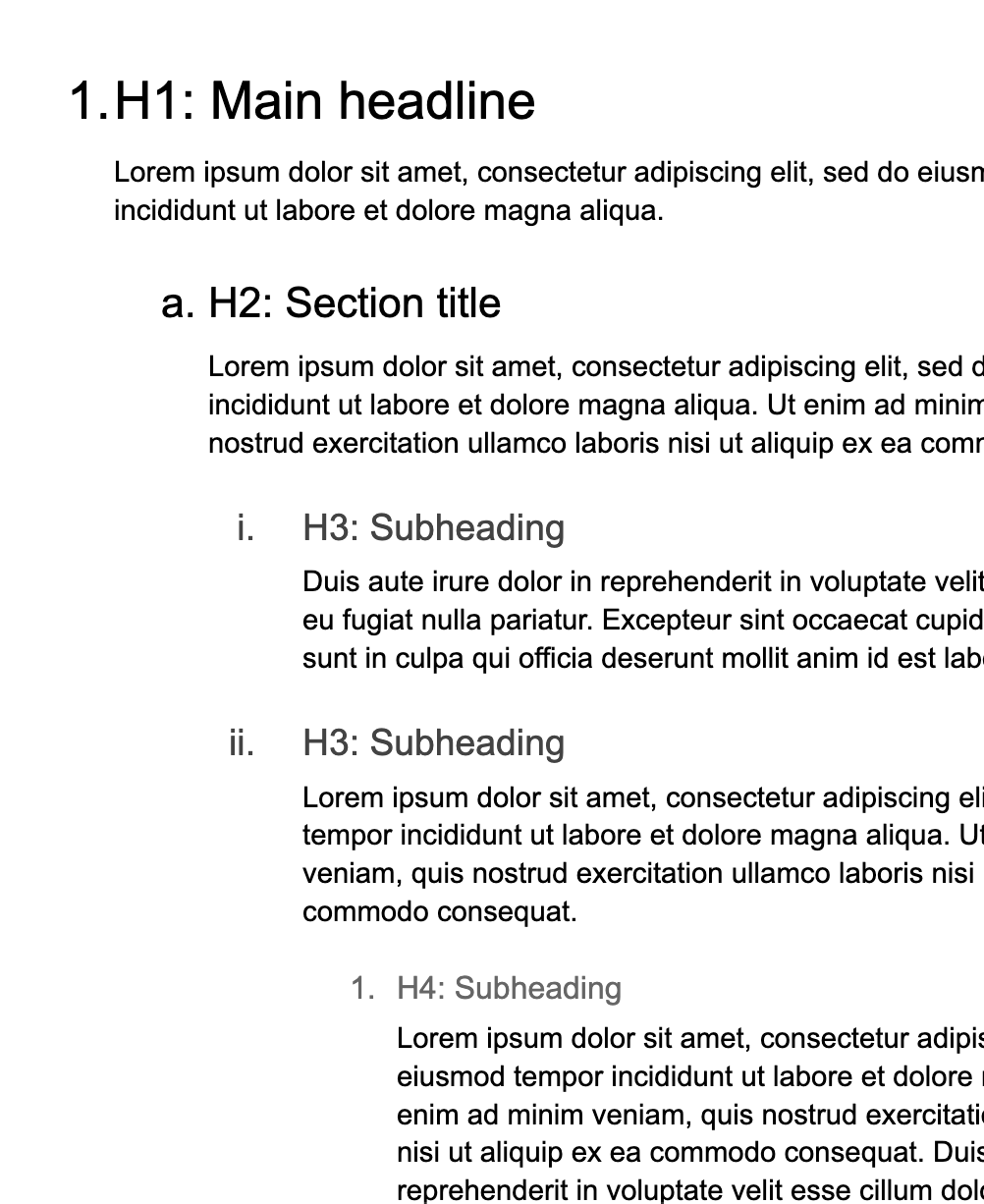
Once you’ve created an outline, you’ll have clear headings that summarize your content, and you can tag your headings appropriately in Squarespace.
Common Troubleshooting for Squarespace Headings
Sometimes, there are sizing or aesthetic issues that arise with headings in Squarespace, and you may be inclined to change the heading number to solve these issues. I don’t recommend this because changing the heading number may undermine your heading priority.
Here are some common heading style workarounds that will help you maintain good heading priority:
Customize heading sizes sitewide
Let’s say your site’s Heading 1 is too big for your liking. Instead of choosing Heading 2 for your main headline, change your Heading 1 size in Site Styles:
Click “Edit” on your page editor.
Click the paintbrush icon in the upper right corner to enter Site Styles.
Click “Fonts” → Headings → Size.
Adjust the sliders to customize the size of your headings site-wide.*
Click “Save”.
* NOTE: these adjustments are global, meaning changes made here will change all headings throughout your website.
Change the size of only one heading
If sitewide size adjustments won’t work for you, and you’d rather change the size of only one heading on your site, use the Scale Text feature:
In your page editor, highlight the text you want to adjust.
Click the Scale Text button in your Text Block toolbar (the “A” with brackets around it).
Adjust the blue bounding box to adjust the size on the page.*
* NOTE: This option works best when the heading text is short (1-3 words) and is isolated in its own Text Block.
Mobile Heading Size Issues
Sometimes, a heading’s size makes longer words split to two lines in mobile view. If this is happening on your site, don’t change the heading designation! Try these options instead:
Reduce the sitewide size in Site Styles (see “customize heading sizes sitewide” above).
Or, try using the Scale Text feature to constrain proportions of one specific heading.
Avoid Using Headings for Paragraph Text
Again, all headings (H1 - H4) should be reserved for headlines, section titles, and subheadings. In general, headings should be short and descriptive.
Try to avoid assigning heading styles to paragraphs of text. If you’re finding yourself assigning a heading stye (Heading 4, for example) to a paragraph of text because you prefer the heading font, I recommend changing your paragraph font, sitewide, instead.
Here’s how to change your fonts in Squarespace:
Click “Edit” on your page editor.
Click the paintbrush icon in the upper righthand corner to enter Site Styles.
Click “Fonts” → Paragraphs.
Select a new paragraph font.
Click “Save”.
Remember, choosing Heading 1 - Heading 4 in your Text Block menu gets written into your site code and helps search engines, screen readers, and real people understand your site structure. Using heading designations purely for style is not recommended.
Want to skip the manual heading priority setup?
Our premium Squarespace templates for therapists and coaches come with proper heading priority set and ready to go. All you have to do is replace the demo text with your own, and be on your way!